
Appearance
Managing Your Music Library
Koel makes it easy to build and organize a rich music library from your personal collection.
Setting Your Media Path
The first thing to do after installation is tell Koel where your music lives.
- Navigate to Settings from the sidebar
- Enter the absolute path to your music directory in the Media Path field
- Click Save & Scan
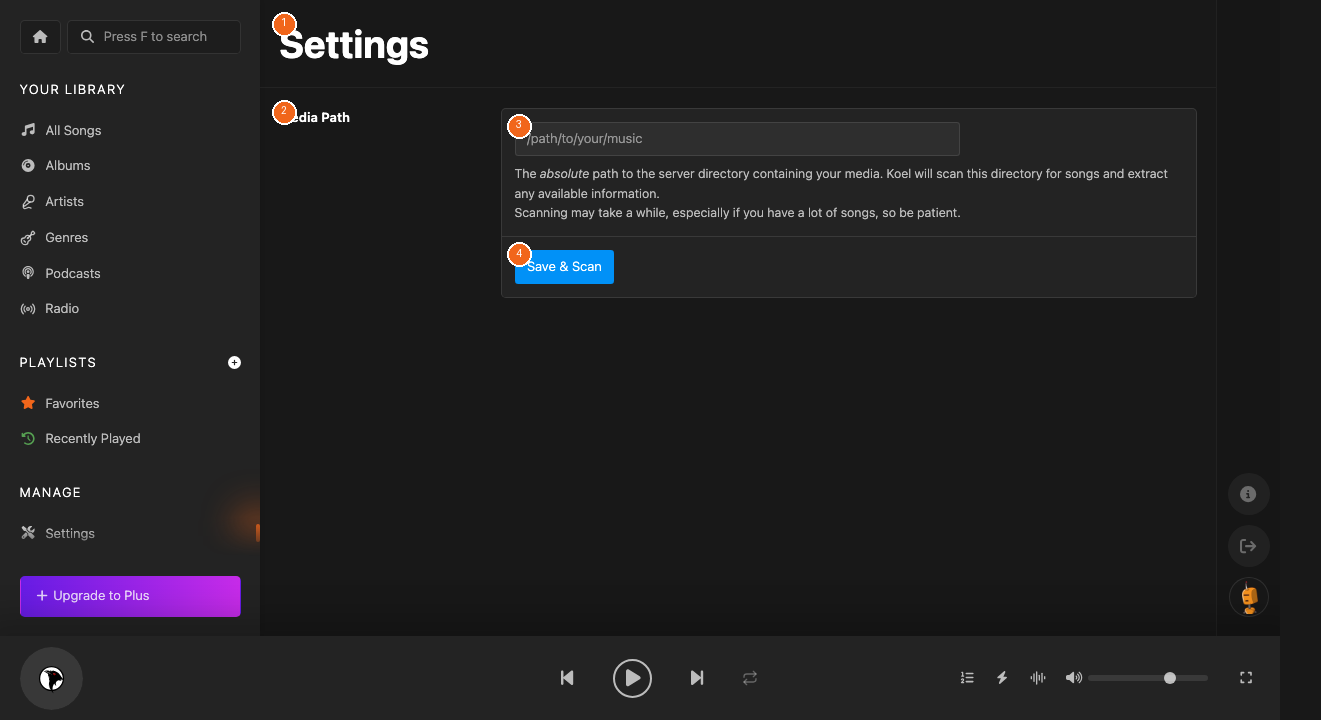
Koel reads metadata (ID3 tags) from your audio files — title, artist, album, genre, year, lyrics, and album art.
Uploading Music
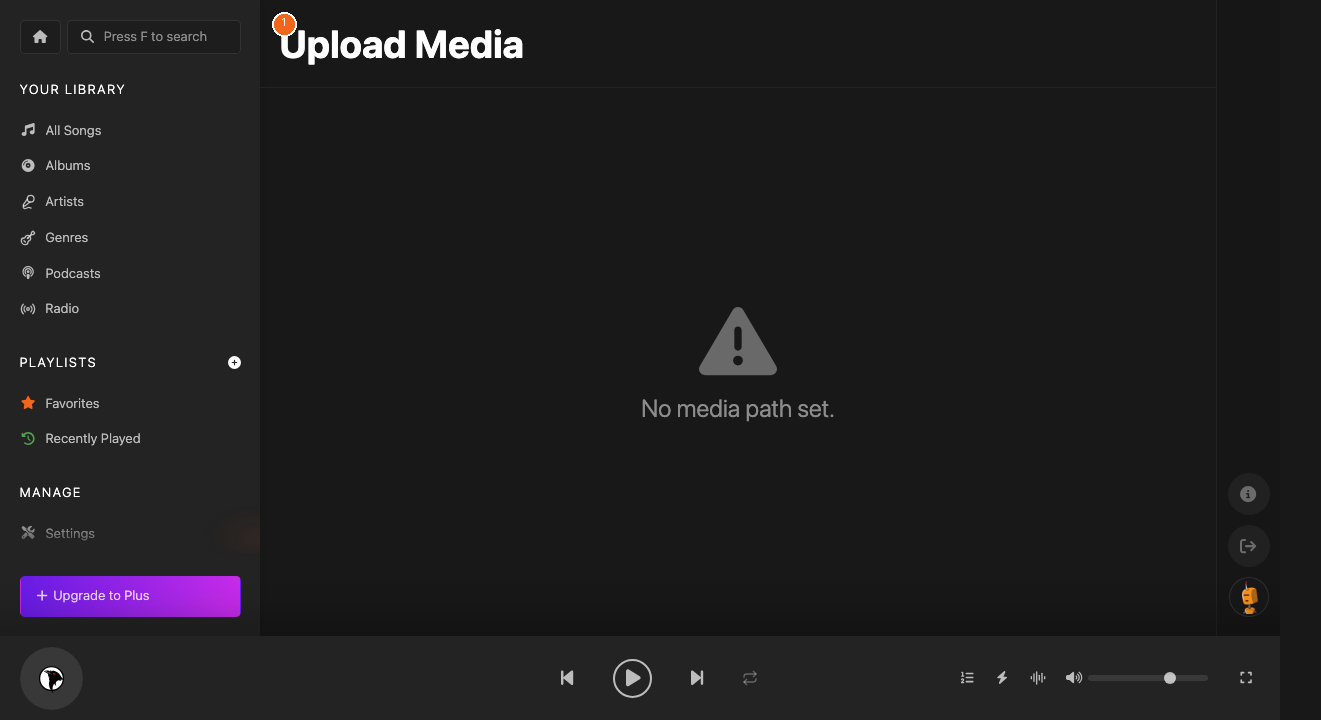
You can also upload tracks directly through the browser:
- Click Upload in the sidebar
- Drag and drop files onto the upload area, or click to browse
- Koel processes and catalogs each file automatically
Supported Formats
Koel supports all common audio formats:
- MP3, AAC, OGG, FLAC, WAV
- FLAC files can be transcoded on-the-fly to save bandwidth
Automatic Scanning
For hands-free library updates, Koel supports:
- Manual scan:
php artisan koel:scanfrom the command line - Automatic watching with inotify for real-time detection of new files
- Scheduled scans via cron for periodic library refreshes
Cloud Storage (Koel Plus)
With Koel Plus, store your music on:
- Amazon S3 (or S3-compatible services like Cloudflare R2)
- Dropbox
- SFTP servers
Gestionando tu Biblioteca Musical
Koel facilita la construcción de una rica biblioteca musical desde tu colección personal.
Configurar la Ruta de Medios
- Ve a Configuración en la barra lateral
- Ingresa la ruta absoluta a tu directorio de música
- Haz clic en Guardar y Escanear
Subir Música
Arrastra y suelta archivos en la zona de carga, o haz clic para explorar.
音楽ライブラリの管理
Koelを使えば、個人コレクションから豊富な音楽ライブラリを簡単に構築・整理できます。
メディアパスの設定
- サイドバーから設定に移動
- 音楽ディレクトリの絶対パスを入力
- 保存してスキャンをクリック